
How to Use Descript AI Video Editor in 2026: A Practical Beginner’s Guide
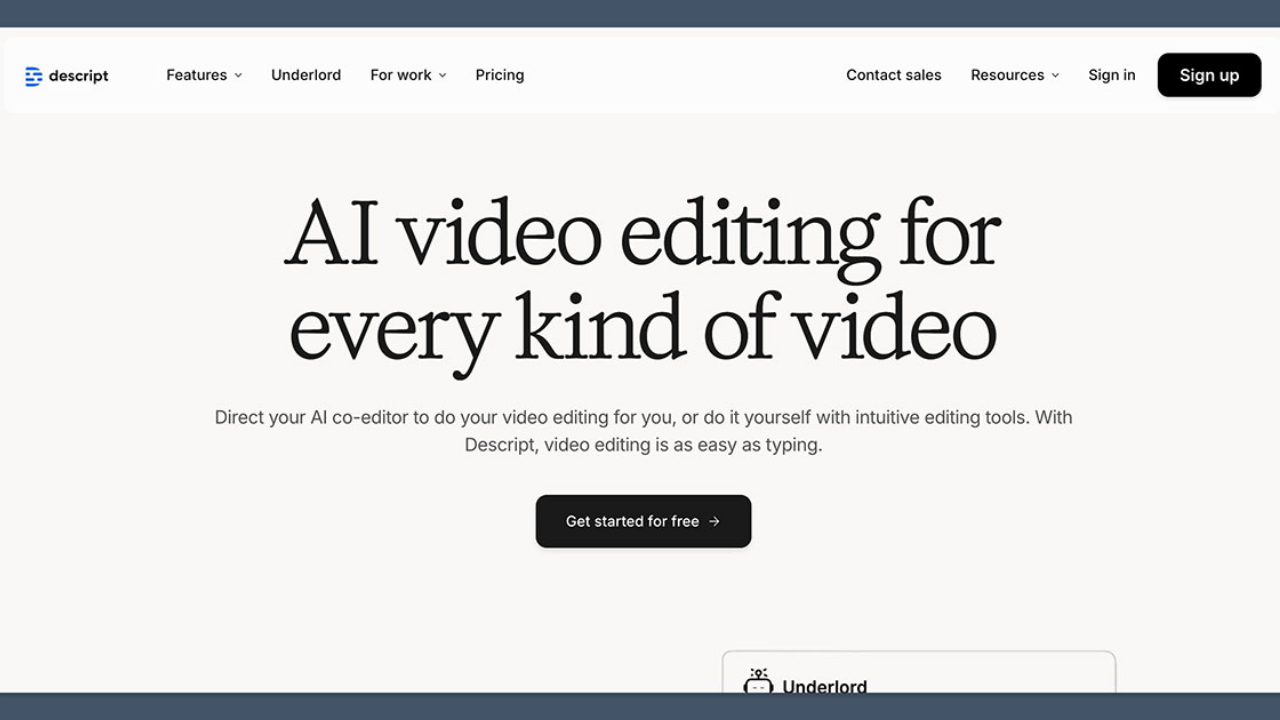
If traditional video editors make you feel like you need a course before you can make a simple edit, Descript takes a different route: it turns your recording into text and lets you edit the video by editing the transcript. In 2026, that basic idea has expanded into an AI-assisted workflow built around Underlord, audio cleanup, captions, clips, generation, and collaboration.
Key Takeaways
- Descript is built around text-based video editing: edit the transcript and the corresponding audio/video changes with it.
- Underlord is Descript’s AI co-editor for tasks such as tightening edits, removing filler and silence, improving audio, and adding visual elements.
- The free plan is useful for testing the workflow; paid plans add more media hours, AI credits, higher export quality, and advanced AI features.
- Descript is particularly strong for YouTube videos, podcasts, webinars, tutorials, product demos, and marketing content.
- It is not a replacement for every professional NLE. If you need extremely detailed timeline control, a traditional editor can still be the better fit.
What Is Descript?
Descript is an AI-powered audio and video editor that lets you work with media through a transcript, alongside conventional timeline and visual controls. Descript describes its editor as an all-in-one environment for creating, editing, recording, transcribing, generating, and sharing video. Its AI co-editor, Underlord, can work under the user’s direction rather than forcing every edit through a manual timeline workflow.
The practical difference is easiest to understand with a talking-head video. Instead of scrubbing through a 20-minute recording to find every “um,” repeated sentence, or mistake, you can work from the generated transcript. Delete the unwanted words, and Descript applies those changes to the media. The editor also provides scenes, a canvas, timeline editing, properties, and an app bar for more conventional controls.
Descript’s official beginner guide, updated July 29, 2026, describes this transcript-first concept as the central idea behind its workflow. Its official product page also lists transcription, captions, Studio Sound, Remove Filler Words, Eye Contact, Green Screen, Create Clips, AI speech, and generative video among its capabilities.
Why Descript’s AI Workflow Is Different
Descript’s biggest advantage is not that it has more AI buttons than every competitor; it is that several AI features sit directly inside a text-based editing workflow. That makes it especially useful when the raw material is speech-heavy and the main job is cleaning, restructuring, and repurposing what someone said.
- Transcript editing: delete or rearrange spoken words and apply the changes to the media.
- Underlord: give the AI co-editor plain-language instructions for editing, feedback, design, or generation.
- Studio Sound: reduce background noise and improve voice quality.
- Remove Filler Words: remove verbal fillers such as “um” and “uh.”
- Create Clips: turn longer recordings into shorter social-ready videos.
- Captions: add subtitles to make content easier to follow and more accessible.
- Eye Contact and Green Screen: apply AI-assisted visual corrections without traditional manual workflows.

One useful distinction: Descript still includes professional timeline controls. The text-first interface is not a simplified toy editor that prevents precision. Descript’s official documentation describes a timeline, visual navigation, scene rail, canvas, and properties panel for detailed adjustments.
How to Use Descript: A Step-by-Step Workflow
A beginner can get a useful Descript project running in a few basic stages: create a project, import or record media, let Descript transcribe it, edit the transcript, apply AI cleanup, add visual polish, and export.
1. Create a project
After signing in, create a new project from the Drive view or from inside an existing project. Descript’s current beginner guide says you can use the New button in Drive View or choose File > New > New project from inside the editor. Keyboard shortcuts such as Command+N or Ctrl+N can also start a project.
2. Record or import your footage
You can record directly in Descript or import an existing audio/video file. For a YouTube tutorial, for example, you might import a webcam recording and a screen recording, then build the final composition from those assets. For a podcast, you can work with multiple speakers and tracks.
For a first test, use a 5–10 minute talking-head clip. This is long enough to expose the useful parts of the workflow without creating a large project that becomes annoying to troubleshoot.
3. Let Descript create the transcript
Once the media is in the project, Descript transcribes it. The transcript becomes your editing surface. This is where Descript feels most different from a conventional editor.
If the speaker says something incorrectly, you can find the sentence in the transcript rather than hunting for the exact moment on the timeline. Delete a sentence, and the corresponding section of the composition can be removed.
4. Clean the transcript before polishing visuals
This is where a lot of beginners make the wrong move. Don’t start adding animations, transitions, and B-roll before the spoken structure is right. First remove repetition, obvious mistakes, unnecessary pauses, and filler.
Descript’s Remove Filler Words feature is designed for exactly this kind of cleanup. You can also use Underlord to handle editing tasks from natural-language instructions. For example, you can ask it to tighten a section or clean up obvious dead air, then review the result rather than accepting every AI decision blindly.
5. Improve the audio
Use Studio Sound when the recording needs cleanup. Descript says Studio Sound uses regenerative AI to reduce background noise, echo, and hiss while improving voice clarity. This can be particularly useful for home-office recordings, webinars, podcasts, and quick marketing videos.
There is a practical limit, though: AI audio enhancement cannot magically reconstruct information that was never captured. If the microphone is badly distorted or the speaker is nearly inaudible, record better source audio whenever possible.
6. Add captions, visuals, and B-roll
Once the edit is structurally clean, add captions and visual elements. Descript supports scenes and layouts that behave somewhat like presentation slides, making it straightforward to combine spoken content with screen recordings, images, graphics, and other visual material.
For short-form content, Create Clips can help repurpose longer recordings into shorter pieces for platforms such as TikTok, Instagram, or LinkedIn. The best results still need human review: an AI-selected clip can be technically coherent without being the strongest hook.
7. Export and review the final video
Watch the exported version from beginning to end. Check captions, cuts, audio levels, visual timing, and any AI-generated elements. This final review matters because AI-assisted editing is still probabilistic: a feature can make the intended change while introducing a small mistake somewhere else.
Descript Features Worth Using First
If you’re new to Descript, start with transcription, text-based editing, filler removal, Studio Sound, captions, and Underlord before experimenting with more advanced generation features. Those tools address the most common editing bottlenecks without changing your creative workflow too dramatically.
A practical first-project stack
- Transcription — turn the recording into editable text.
- Text-based cuts — remove mistakes and unnecessary sections.
- Remove Filler Words — clean repetitive verbal fillers.
- Studio Sound — improve imperfect voice recordings.
- Captions — add readable subtitles.
- Create Clips — repurpose long-form content.
- Underlord — automate selected editing or design tasks.
Descript also supports AI speech, voice cloning, video regeneration, avatars, green-screen effects, eye contact, and generative video. Those features can be valuable, but they are easier to judge after you understand the core editing model.
Descript Pricing in 2026
Descript has a free plan, while the paid plans increase media hours, AI credits, export quality, and access to advanced AI capabilities. The current official pricing page lists the following monthly prices, with lower displayed prices for annual billing.
| Plan | Annual-billing price shown | Monthly price shown | Key limits/features |
|---|---|---|---|
| Free | $0 | $0 | 1 media hour/month, 100 AI credits/month, 720p watermark-free export, limited Underlord and AI tools. |
| Hobbyist | $16/person/month | $24/person/month | 10 media hours, 400 AI credits, 1080p watermark-free export, Underlord, AI tools and AI Speech. |
| Creator | $24/person/month | $35/person/month | 30 media hours, 800 AI credits, 4K watermark-free export, full Underlord access, 20+ AI tools, generative video and stock media. |
| Business | $50/person/month | $65/person/month | 40 media hours, 1,500 AI credits, Brand Studio, translation/dubbing in 30+ languages, custom avatars and priority support. |
Pricing caveat: Descript’s displayed pricing can differ depending on monthly versus annual billing and may change over time. Check the official pricing page before subscribing. The figures above reflect the pricing displayed by Descript when this article was researched on August 31, 2026.
The free plan is enough to decide whether text-based editing fits your workflow. If you regularly publish videos, the Hobbyist or Creator tier is more practical because the additional media hours and AI credits remove some of the free plan’s constraints.
Pros, Cons, and Who Should Actually Use Descript?
Descript is strongest for creators whose videos are driven by speech and who want to reduce the mechanical work of editing. It is less compelling if your workflow depends on highly specialized, frame-by-frame post-production.
Pros
- Text-based editing dramatically simplifies spoken-content edits.
- Underlord brings AI assistance directly into the editing workflow.
- Strong combination of transcription, audio cleanup, captions, clips, and recording.
- Useful for YouTube, podcasts, webinars, tutorials, product demos, and marketing videos.
- Free tier makes it easy to test before paying.
Cons
- Heavy AI usage is constrained by plan-based AI credits.
- Media-hour limits matter for frequent long-form production.
- AI output still needs human review.
- Editors who prefer traditional, timeline-first workflows may find the transcript-first approach less natural.
My practical take: Descript makes the most sense when the expensive part of your editing process is finding, cleaning, restructuring, and repurposing speech. If your work is mostly cinematic color grading, complex compositing, motion graphics, or highly detailed timeline manipulation, Descript should probably be part of the workflow rather than the only editor.
How Descript Compares With Alternatives
Descript competes most directly with AI-assisted editors such as CapCut and traditional professional editors that have added AI features, but the core positioning is different.
| Tool | Best fit | Key difference |
|---|---|---|
| Descript | Talking-head videos, podcasts, tutorials, webinars | Transcript-first editing plus Underlord and AI cleanup. |
| CapCut | Fast social content and creator editing | Broad template-driven and AI creation workflow across video, image, audio and social formats. |
| Adobe Premiere Pro | Professional editing and complex timelines | Traditional NLE workflow with advanced professional controls and AI-assisted features. |
| Runway | Generative video and creative AI effects | More focused on generative media and visual experimentation than transcript-first editing. |
For context, CapCut’s official AI video editor page highlights AI avatars, AI video creation, captions and other creator-oriented features, while Descript’s product model is more centered on turning spoken media into an editable document. The right choice depends less on which tool has the longest AI feature list and more on what your raw footage looks like.
If you are building a wider AI-tool workflow, AIToolInsight’s existing coverage of Poe AI, Claude AI, and AI developer tools can also help you compare where different AI products fit into a broader content and productivity stack.
FAQ: Descript AI Video Editor
How does Descript’s AI video editor work?
Descript automatically transcribes audio and video so you can edit the recording by changing the transcript. Deleting or rearranging text changes the corresponding media. Descript also adds AI tools such as Underlord, Studio Sound, filler-word removal, captions, clips, and generative features.
Is Descript free to use?
Yes. Descript has a free plan with 1 media hour per month, 100 AI credits per month, 720p watermark-free export, and limited access to Underlord and other AI tools. Paid plans increase media hours, AI credits, export quality, and advanced feature access.
What is Underlord in Descript?
Underlord is Descript’s built-in AI co-editor. You can give Underlord plain-language instructions for editing, design, writing, feedback, and media generation. It can help tighten cuts, remove unwanted material, improve audio, add visuals, and perform other editing tasks under your direction.
Is Descript good for YouTube videos?
Yes. Descript is particularly useful for YouTube videos built around talking, tutorials, interviews, podcasts, webinars, and screen recordings. Its transcript editing, filler removal, Studio Sound, captions, clips, screen recording, and AI-assisted editing can reduce repetitive post-production work.
Is Descript better than CapCut?
Neither is universally better. Descript is stronger when transcript-based editing and speech-heavy content are central to the workflow. CapCut is attractive for fast social content, templates, and a broader creator-oriented editing environment. Choose Descript for speech-driven editing and CapCut for quick social-first production.
The Verdict: Who Should Use Descript?
Descript is one of the more practical AI video editors for people who spend too much time cleaning and restructuring spoken content. Its real advantage is not a single flashy AI feature. It is the combination of transcript-based editing, AI cleanup, audio enhancement, captions, clips, recording, and Underlord inside one workflow.
For a YouTuber, podcaster, marketer, educator, SaaS team, or social-media creator, that can remove a large amount of repetitive editing. Start with the free plan, test the transcript workflow on a real recording, and only upgrade when the media-hour and AI-credit limits become a genuine constraint.
That is the best way to judge Descript: don’t ask whether AI video editing sounds impressive. Put a real 20-minute recording into it and see how much of the boring work disappears.

An AI researcher who spends time testing new tools, models, and emerging trends to see what actually works.

